Your home cockpit
Where to next?
Import your SimBrief flight plan to set up the map, charts and briefing. Your next flight starts with a familiar view.

Free EFB for MSFS & X-Plane
Your route, charts and flight details, together beside your simulator. Built for iPad. Ready for every leg.
iPad first. Also on iPhone, Android and Windows.
334 airlines · 41,358 routes


01 / Before departure
Bring your SimBrief plan, or find a route worth flying. Vector gets the details together.
Your home cockpit
Import your SimBrief flight plan to set up the map, charts and briefing. Your next flight starts with a familiar view.
Real routes. Your choice.
Browse 334 airlines and 41,358 routes. Keep a roster, choose your next sector and dispatch to SimBrief.
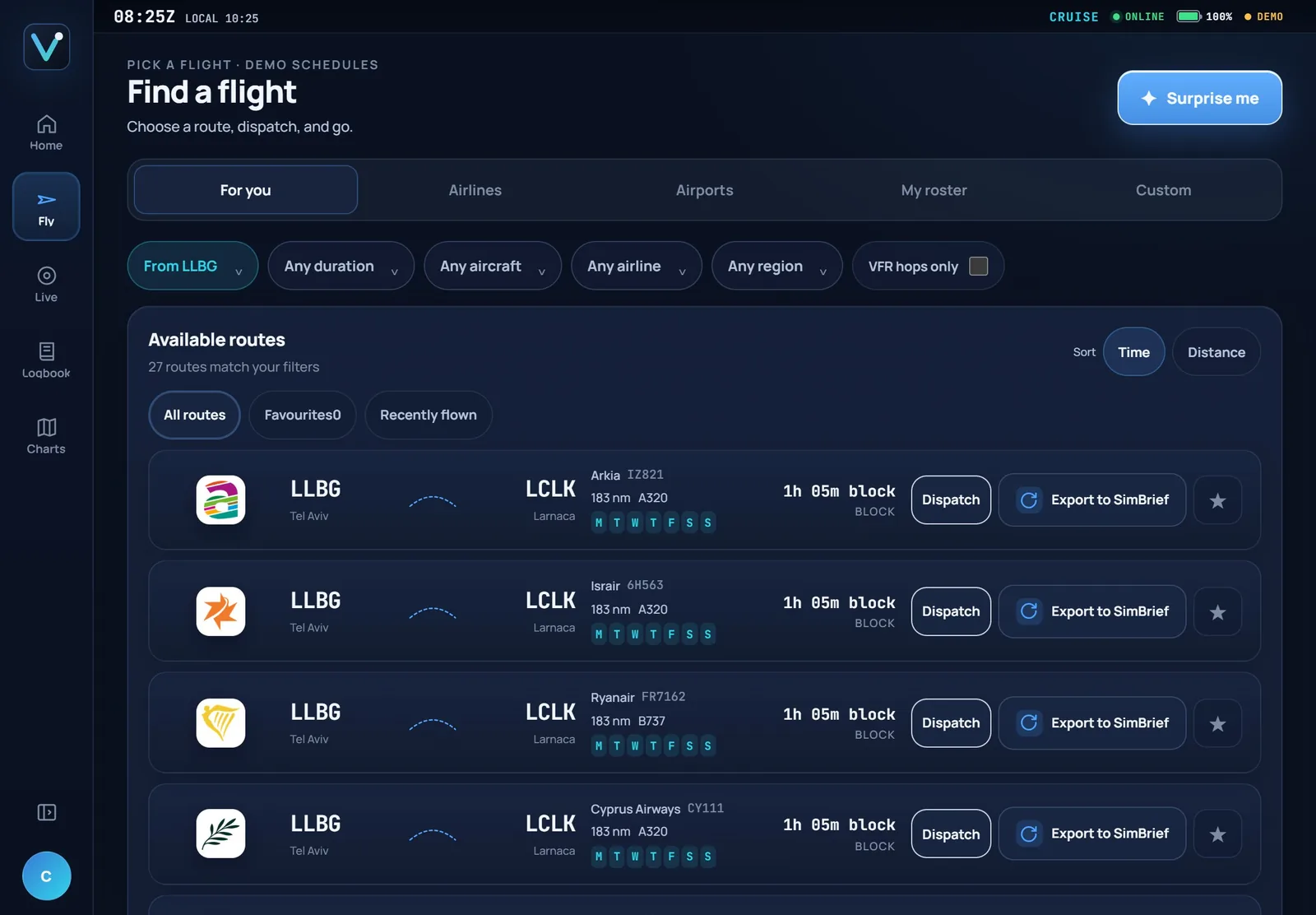
Airline route coverage uses the OpenFlights 2014 snapshot.
02 / In flight
Keep your route, next fix, ETA and procedures close. From the first taxiway to the go-around plan.
Charts & procedures
21,000+ official FAA charts for 2,396 US airports, with your aircraft on airport diagrams. Keep runway, SID, STAR, approach and go-around details in view.
FAA charts included free Map overlays with Pro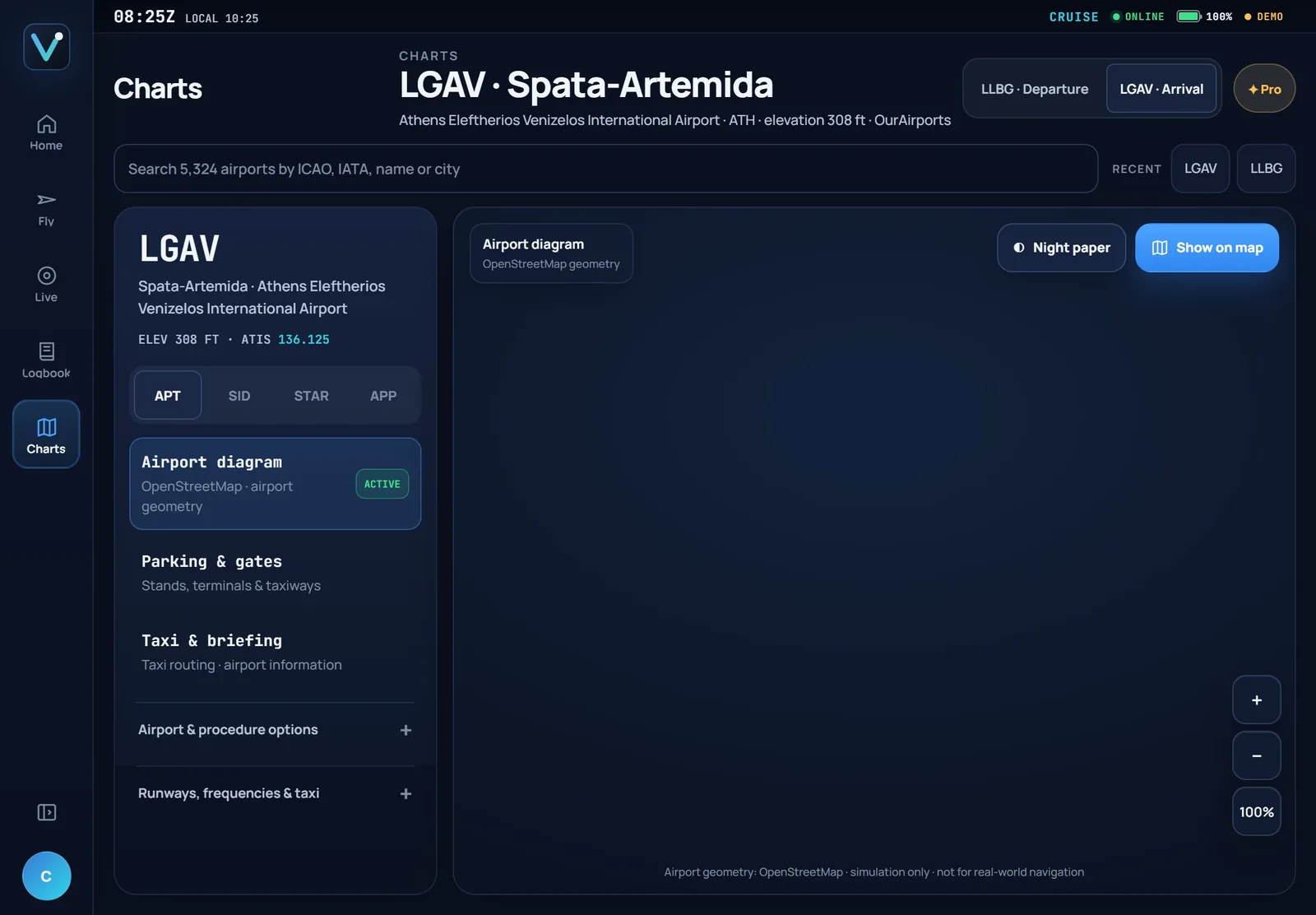
Live situational awareness
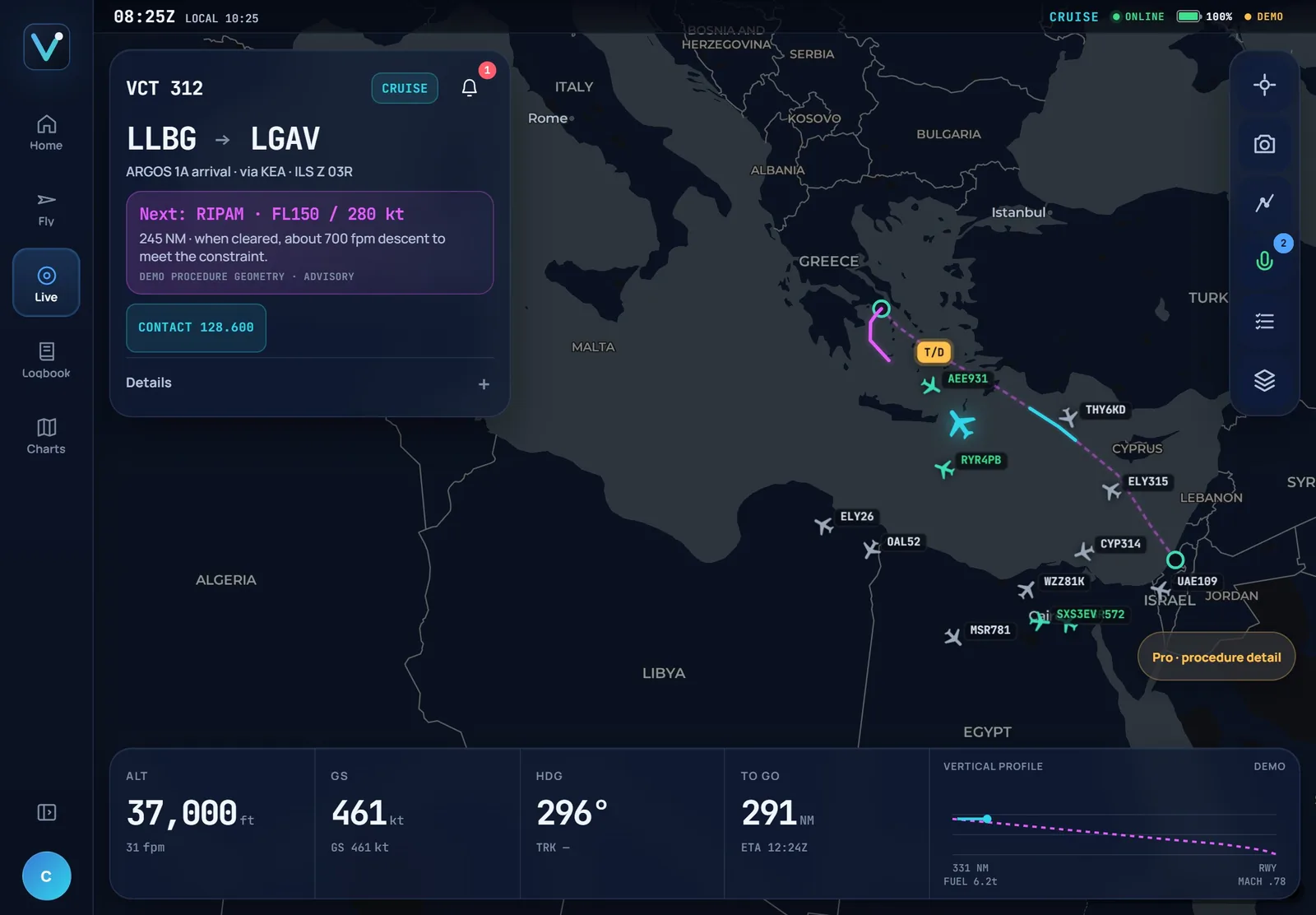
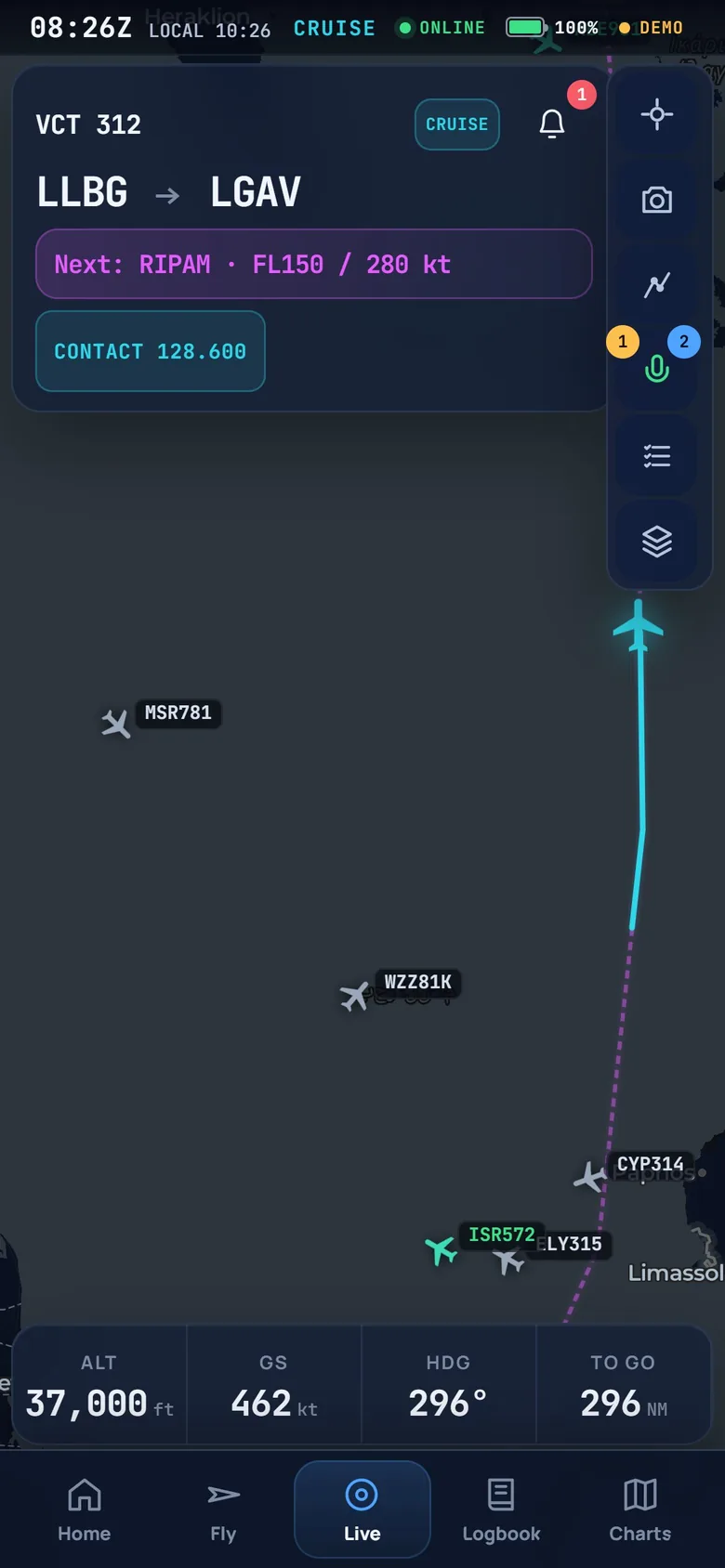
Follow your SimBrief route and every waypoint. See weather and VATSIM or IVAO awareness alongside your live flight.
Live map included free
Runway, SID, STAR and approach selections, including transitions. US procedures use FAA data, including the go-around; elsewhere, names come from your SimBrief OFP.
Checklists for 21 aircraft families, plus calm notifications and alerts from your iPad to your phone.
Paste or upload a PDF or image and place it with two taps. Pro adds unlimited own charts and charts on the map. Pin up to 12 charts for quick access.
03 / After landing
A Flighty-style logbook for your simulator flying. Look back at the routes, the landings and the details that made each leg yours.
Your logbook
Every flown route on one map. Review your landing rate and grade after touchdown.
Logbook included free
Your Passport
See your flight statistics together in a personal Passport card.
Passport with Pro
The details of every leg
Review flight times, the phase timeline and altitude profile. With Pro, replay the flight and keep your logbook on every device.
Flight replay with Pro
A companion on every screen
Room for the whole picture at your desk. A dedicated, smaller view when your phone is closer.
Open Vector in your browser on iPad, iPhone, Android or Windows. Add it to your Home Screen for quick access.
Pro adds Live Activity and Dynamic Island on iPhone, plus your logbook on every device.
iPhone Live Activity with Pro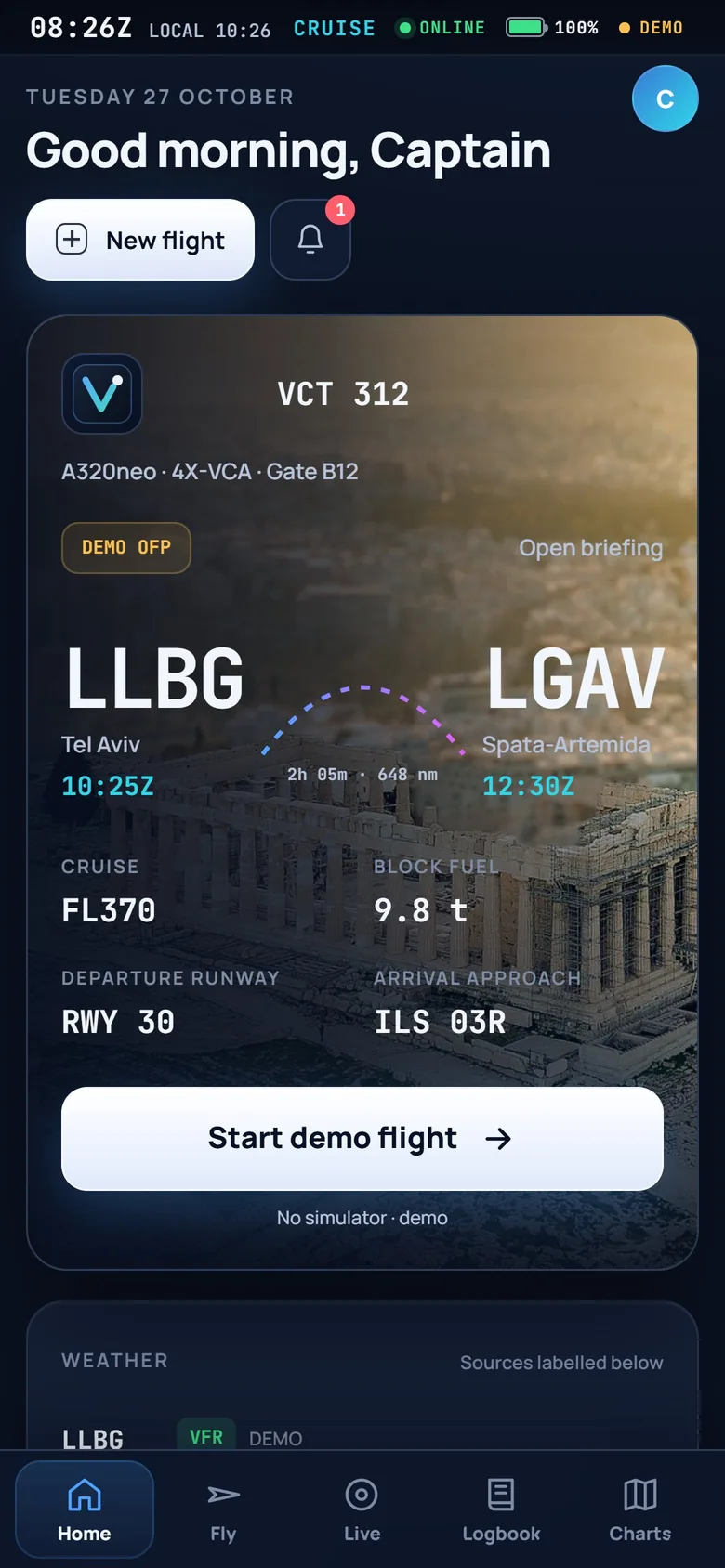
A little more, if you want it
A complete flight companion for free. Optional Pro adds more ways to follow, hear and remember your flights.
$0
From planning your next route to logging the landing.
$1.99 / month
$14.99 / year · Best value
Everything in Free, plus tools to go further. Your subscription supports development.
Pro payments are not live yet. Planned pricing is $1.99/month or $14.99/year, with a 7-day free trial.
Your sim. Your Wi-Fi. Your screen.
The free Windows Bridge connects MSFS or X-Plane to Vector over Wi-Fi.
Install Vector Bridge on the Windows computer running your simulator when the download becomes available.
Use the Bridge to connect MSFS or X-Plane to Vector over your Wi-Fi network.
Open the app in your browser on iPad, phone, Android or Windows.
Windows Bridge download is coming soon.
To install Vector as an app, use Add to Home Screen on iPad or iPhone, or Install in Chrome or Edge.
Before you fly
Simulators, charts, installation and what comes with Pro.
Vector supports MSFS and X-Plane through the free Windows Bridge. The Bridge connects the computer running your simulator to Vector over Wi-Fi.
Windows Bridge download is coming soon. See the installation section for availability.
Yes. Vector is built for iPad and also works in the browser on iPhone, Android and Windows.
Use Add to Home Screen on iPad or iPhone, or Install in Chrome or Edge. Live Activity and Dynamic Island are iPhone features included with Pro.
Free includes 21,000+ official FAA charts for 2,396 US airports, with your aircraft shown on airport diagrams.
At US airports, procedures are drawn from FAA data, including the go-around plan. Elsewhere, procedure names come from your SimBrief OFP.
You can paste or upload your own PDF or image and place it with two taps. Pro adds unlimited own charts and chart overlays on the map. Up to 12 charts can be pinned for quick access.
Both are included free. Import your SimBrief plan, or explore 334 real airlines and 41,358 routes, keep a roster and dispatch to SimBrief.
The airline route network uses the OpenFlights 2014 snapshot; it is not a current airline timetable.
Vector automatically detects offline, VATSIM or IVAO flying and provides network awareness. Position comparisons happen on your device; nothing personal is sent for those comparisons.
Notifications and alerts from your iPad to your phone help you stay informed.
Free includes the live map, FAA charts, procedures with go-around, SimBrief import, real airline routes, logbook, checklists, weather, network awareness and the Windows Bridge.
Pro adds charts on the map, Listen to ATC and ATC coach tools, unlimited own charts, replay, Passport, logbook on every device, and Live Activity / Dynamic Island on iPhone.
Planned Pro pricing is $1.99/month or $14.99/year, with a 7-day free trial. The yearly plan is the best value.
Payments are not live yet, so Pro is marked “Coming soon”. Your subscription will support Vector’s development.
Ready for your next leg?
Plan the route. Follow the flight. Remember the landing.